
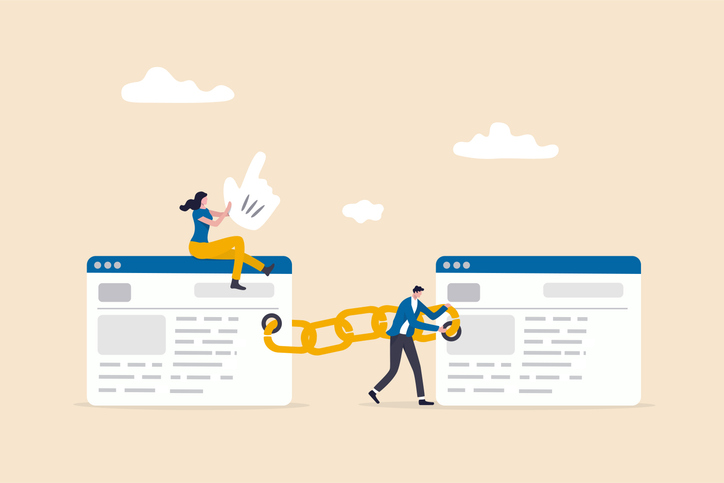
What Are Broken Links?
A broken link is a hyperlink that doesn’t work as expected. Instead of loading the right content, it leads to an error or fails to load anything at all.
You’ve probably come across this yourself. You click on a link and end up on a “404 Not Found” page, see a “500 Internal Server Error,” or get a message like “This site can’t be reached.” These are all examples of broken links.
Most people think of links as something you click to move from one page to another, either on the same website or to a different one. That’s true, but there’s more to it. Links also connect a page to its resources, such as:
- Images (photos, logos, icons)
- Stylesheets (CSS files that control layout and design)
- JavaScript files (scripts that add interactivity or functionality)
If one of these links is broken, the page might not display properly. An image may be missing, the layout might break, or important features might stop working.
Broken links can be either internal (pointing to another part of your own website) or external (pointing to another domain). In both cases, they interrupt the connection between the content and its destination or required resources.
In short, a broken link means that something is no longer where it’s supposed to be, and your visitors end up with a poor experience because of it.
What Causes Broken Links?
Broken links usually appear over time as websites change or grow. They can be the result of human error, website updates, or changes on other websites you link to. Here are some of the most common causes:
- A page was moved or renamed without updating the links that point to it.
- A page was deleted because the content was no longer needed or relevant.
- There was a typo in the URL, such as a missing letter or an extra slash.
- The external website you linked to no longer exists or has gone offline.
- The web server hosting the page or resource is temporarily down or cannot be reached.
- An image, stylesheet, or script file was removed or relocated, breaking the link to that resource.
Once a link is broken, anyone who clicks it will run into a problem instead of reaching the intended content. And unless you regularly check your site, you might not even realize it’s happening.
Why Broken Links Are a Problem
Broken links may seem like a small issue, but they can create real problems for both your visitors and your website as a whole.
- Visitors who click on a broken link land on an error page or see missing content. This creates a poor user experience and may lead people to leave your site.
- Broken links can make your site look unprofessional or poorly maintained, especially if there are many of them.
- Search engines may lower your rankings if they detect too many broken links. They treat it as a sign that your site is not being kept up to date.
- Some broken links may point to sites that now host malware or spam. This can harm your visitors and damage your reputation.
- Outdated links might still work but no longer point to relevant or trustworthy information. This can mislead readers and reduce the quality of your content.
Even a few broken links can hurt the credibility of your site. Over time, if they are not addressed, they can pile up and cause more serious issues for your traffic, user trust, and search performance.
How to Find Broken Links
Finding broken links manually can be time-consuming, especially if your site has many pages. Fortunately, there are tools that can do the hard work for you.
One useful tool is Dr. Link Check. It scans your entire website and checks each link it finds. The tool looks for problems such as:
- URLs that are not properly formatted
- Servers that do not respond or take too long to respond
- Pages that return error codes like 404 or 500
- Invalid SSL certificates on secure (https) links
- Links that point to parked domains or known malware sites
Dr. Link Check gives you a clear report showing which links are broken and why. It also helps identify potential security risks by flagging links that may lead to unsafe destinations.
How to Fix Broken Links
Once you know which links are broken, the next step is to fix them. What action you take depends on why the link is broken and how your website is set up. Here are some common ways to deal with broken links:
- If the link has a typo, correct the URL so it points to the right location.
- If the page still exists under a new address, set up a 301 redirect from the old URL to the new one. This helps preserve both user experience and search engine rankings.
- If the page has been removed permanently, try to find an alternative page with similar content and update the link.
- If the content is no longer available anywhere, you can look it up on the Wayback Machine and link to an archived version.
- If no suitable replacement exists and the link is not essential, simply remove it and leave the surrounding text as it is.
How you apply the fix depends on how your site is built:
- If your site is made of static HTML files, open the relevant file in a text editor, search for the broken link in the HTML, and update or remove it. After that, upload the updated file to your server.
- If you use a content management system like WordPress or Drupal, log in to the admin interface and locate the post, page, or section that contains the broken link. Use the built-in editor to update or remove it. If you need to redirect an old URL to a new one, an SEO plugin is the easiest way. In WordPress, plugins like Yoast and Rank Math include a redirect manager where you can enter the old and new addresses and apply the redirect without editing any code.
- If the link appears in a global element such as a navigation menu or footer, check your theme settings, menu editor, or template files to find and fix it.
Staying on Top of Link Maintenance
Fixing broken links once is important, but keeping them from piling up again is just as critical. Over time, pages get removed, domains expire, and external sites change without warning. That’s why link maintenance should be part of your regular website routine. Here are a few simple ways to stay ahead of the problem:
- Scan your site regularly using Dr. Link Check. Set up automatic scans to run weekly or monthly so you catch issues early, before your visitors do.
- Review older content from time to time. If you have blog posts, documentation, or resource pages that haven’t been updated in a while, give them a quick check for outdated or broken links.
- Be cautious with external links. When you link to other websites, prefer reputable sources that are more likely to stay online. If you’re linking to something temporary, consider adding a note to review it later.
- Fix problems promptly once they are discovered. Broken links can multiply quickly, especially on larger sites. Regular maintenance prevents small issues from turning into a larger mess.
Final Thoughts
Link rot is more common than most people think. A Pew Research study found that 38 percent of webpages from 2013 were no longer accessible ten years later. The analysis also discovered that 23 percent of news webpages and 21 percent of government pages contain at least one broken link. And even Wikipedia suffers from it: over 50 percent of articles have at least one dead reference link.
If even well-known and well-maintained websites like these are affected by link decay, it is safe to assume that your own site is at risk too. Links break for many reasons, and not all of them are within your control.
Use a tool like Dr. Link Check to regularly scan your site, and make link maintenance part of your ongoing workflow. Taking care of broken links helps keep your site reliable and your content trustworthy. It is a small task with lasting impact, and worth doing before your visitors or search engines notice something is wrong.